 parley
First-use guide · Windows & macOS
From installing Parley to
your first translated call
Install Parley, connect your meeting audio and test both directions in Zoom. The guide also covers voices and monitoring, stopping the session and exporting captions.
The setup screenshots show test build 0.1.31. The official download offered 0.1.28 on November 26.
Watch the Windows + Zoom walkthrough
This original five-minute demo covers setup and a two-way test, with English and Chinese subtitles. It was filmed on an earlier release. Follow the written steps below for current device names and setup screens.
The video could not load. Use the separate video link, or follow the written steps below.
1. Prepare your computer and a test partner
Only participant A installs Parley. Participant B joins Zoom normally. The goal is simple: A speaks Chinese and B hears English; B speaks English and A hears Chinese.
| Item | What to check |
|---|---|
| Windows | Windows 11, or the separate Windows 10 22H2 Beta package. Under Settings → System → About, check whether your PC is x64 or ARM64. |
| Mac | macOS 14.5 or later; use About This Mac to choose Apple Silicon or Intel. |
| Audio | A working physical microphone and a playback device. Keep playback from feeding back into the microphone. |
| Account & network | Sign in, check the available model and credit, and use a working internet connection. |
| Zoom baseline | First confirm that both participants can hear ordinary, untranslated speech. Disable Zoom’s own speech translation during this check. |
The setup steps use Parley 0.1.31. The walkthrough and some later examples come from the original guide and show 0.1.12. Use the updated steps and the names shown in your installed app.
2. Install Parley on Windows
This walkthrough shows 0.1.31 on Windows 11 x64. In the public 0.1.28 release, configure Hi-Fi Cable under Settings → Audio devices and choose Incoming audio on the meeting screen. Upgrades may retain earlier device names. Match the full names shown in Parley when configuring Zoom.
- In Windows, open Settings → System → About and check the Windows version and System type. On the Parley download page, select Windows 11 or Windows 10 22H2 Beta, then choose the matching x64 or ARM64 installer.
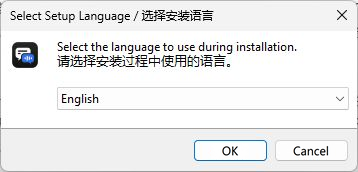
- Run Setup, choose the installation language and approve the Windows administrator prompt. Setup installs Parley and handles the VB-CABLE driver used to send translated speech. It detects existing drivers.
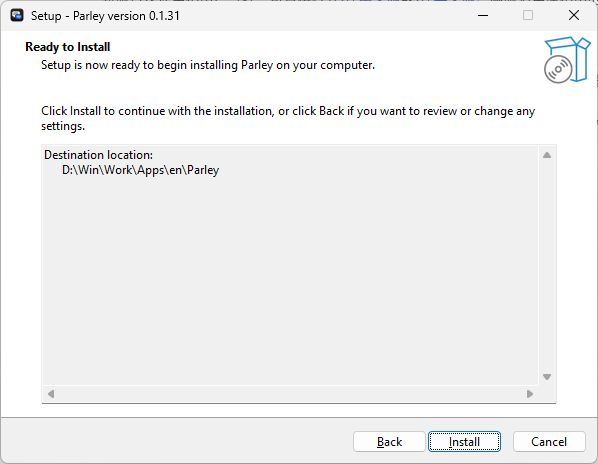
- On the optional Hi-Fi Cable information screen, select Next. On Ready to Install, review the destination folder and click Install. Select Finish to open Parley. If Setup requests a restart, save your work and reopen Parley after Windows restarts.
When you first open Parley, sign in with your website account and allow microphone access. If Parley cannot capture your voice, open Windows Settings → Privacy & security → Microphone and check microphone access for desktop apps.
3. Install the meeting audio drivers
The base VB-CABLE driver provides the meeting microphone for outgoing translations. Check it first, then choose the incoming route for your Windows version and processor.
Check the meeting microphone
Open Meeting translation in Parley. If the Virtual devices row says “Bundled audio component is not installed”, click Install on the right and approve the administrator prompt. Check the result in Settings → Audio devices. If a restart is requested, restart Windows. Note the meeting microphone’s full name once it appears.

Install Hi-Fi Cable on Windows x64
For ARM64, check the routes by Windows version and processor.
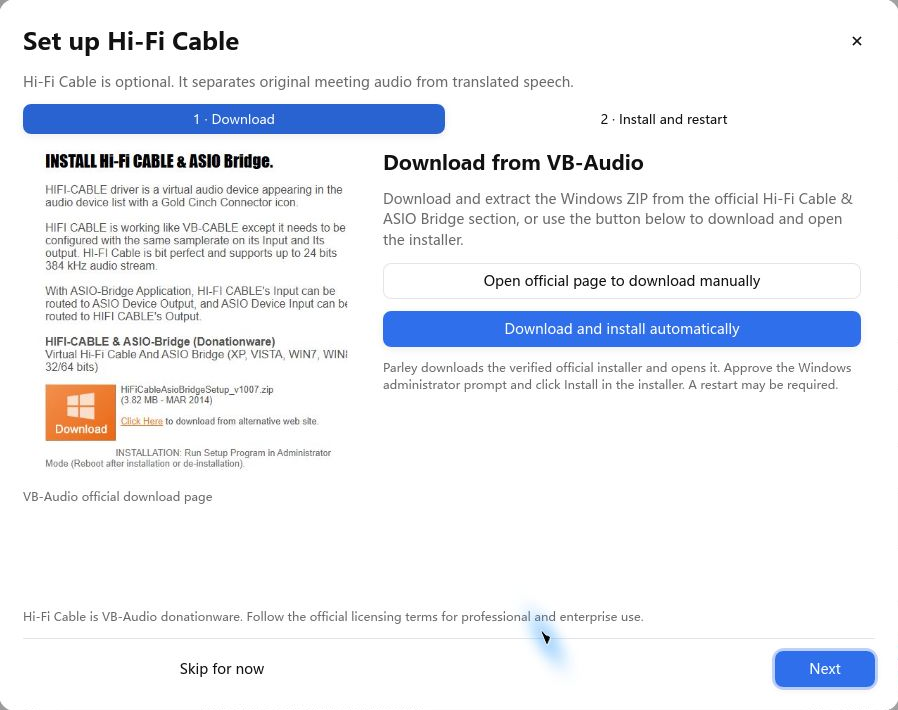
- Open the Hi-Fi Cable guide after Setup, or find it under Settings → Audio devices. On Windows x64, select Download and install automatically.
- For a manual installation, choose Open official page to download manually. Download the Windows ZIP from VB-Audio’s Hi-Fi Cable & ASIO Bridge section, extract it, then run
HiFiCableAsioBridgeSetup.exeas administrator. - Approve the administrator prompt and choose Install in the VB-Audio installer. If it offers Remove, close it and use the installed driver.
4. Restart Windows and check the devices
- After installing Hi-Fi Cable, or if the base driver requests a restart, save your work and close Parley and your meeting app. Choose Start → Power → Restart.
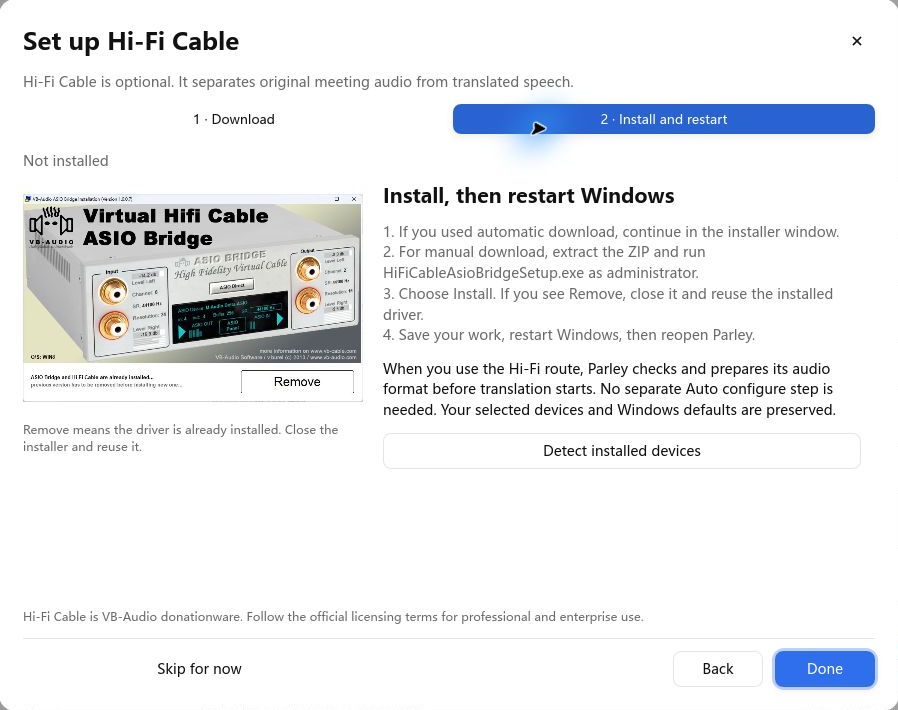
- After signing back in, open Parley’s Hi-Fi Cable guide, go to Install and restart and choose Detect installed devices. You can also check the detected names in Settings → Audio devices.
- Reopen Zoom so it refreshes its device list. With the Hi-Fi route installed, you should be able to find the microphone and speaker shown in Parley in their respective Zoom menus.

5. Connect Parley and Zoom
Sign in to Parley and open Meeting translation. Choose your translation service, then set your language and the other person’s language. The table below uses the Hi-Fi Cable route.
If Incoming audio still shows System audio, stop translation and open Settings → Audio devices. Under Hi-Fi Cable, select Use Hi-Fi Cable. Return to the meeting screen and set the speaker in your meeting app to the exact device name Parley lists.
| Where | Select | Purpose |
|---|---|---|
| Parley · My microphone | Your physical microphone | Picks up your speech |
| Parley · My speakers | Your headphones or speakers | Plays the translation of the other person’s speech |
| Parley · Incoming audio | The meeting speaker source associated with Hi-Fi Cable | Receives the meeting audio for translation |
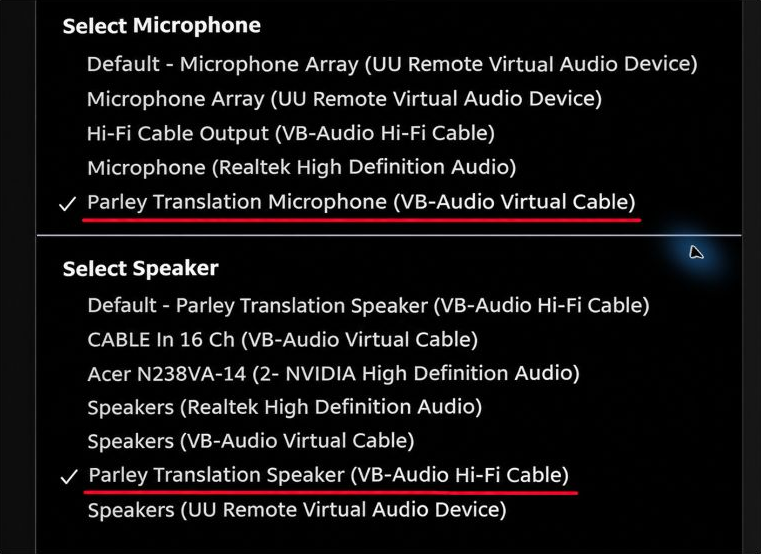
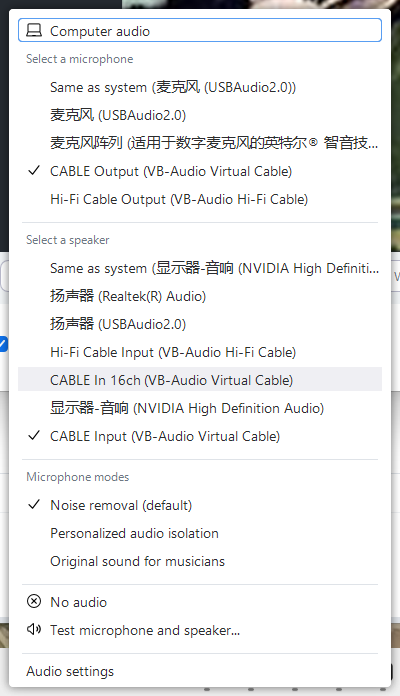
| Zoom · Microphone | Parley Translation Microphone (VB-Audio Virtual Cable) | Sends your translated voice to the other person |
| Zoom · Speaker | Parley Translation Speaker (VB-Audio Hi-Fi Cable) | Sends the other person’s voice to Parley |

In Zoom, open the arrow next to Audio, or go to Settings → Audio. Select the microphone and speaker separately. In another meeting app, choose the pair in its own audio settings.
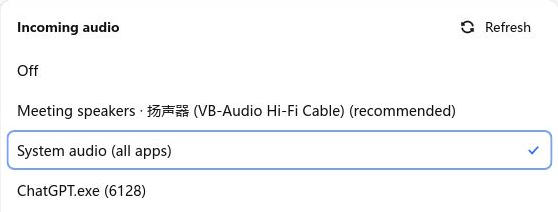
Windows 11 alternative: capture incoming audio from Zoom
- Join a meeting in Zoom, connect to computer audio and ask the other person to speak briefly.
- In Parley, open Incoming audio and select the active Zoom meeting process. If you only need meeting audio, select that process.
- In Zoom, use your actual headphones or speakers for playback. Keep the VB-CABLE translation microphone shown in Parley as Zoom’s microphone. For the Hi-Fi Cable route, use the speaker from the table above.
Check the devices and both audio paths
Open Windows Settings → System → Sound → More sound settings. Look for the meeting microphone under Recording and the meeting speaker under Playback. If an upgrade retained CABLE Output, this is the VB-CABLE recording endpoint that passes your translated speech to Zoom. You can keep your Windows default devices.
- Send translated speech. Physical microphone → Parley → VB-CABLE → Zoom microphone → other participant.
- Receive the other participant. Other participant → Zoom → Hi-Fi Cable or Zoom process capture → Parley → your headphones.
Start with Zoom’s speaker and microphone test. To test the virtual microphone, start translation, say a short sentence and wait for translated audio. Ask the other participant to confirm what they actually heard.
6. Set up a Mac
In About This Mac, check that you have macOS 14.5 or later and identify the chip. Get the Apple Silicon or Intel build from the download page. Open the DMG, drag Parley to Applications, then launch it. Sign in and allow microphone access when prompted. If Parley reports missing virtual audio drivers, install them from its audio settings and approve the administrator prompt. Save your work and restart the Mac, then reopen Parley and Zoom.
-
Choose your physical microphone and headphones. In Meeting translation, open My microphone and My speakers and choose the devices you are using. Check both languages.
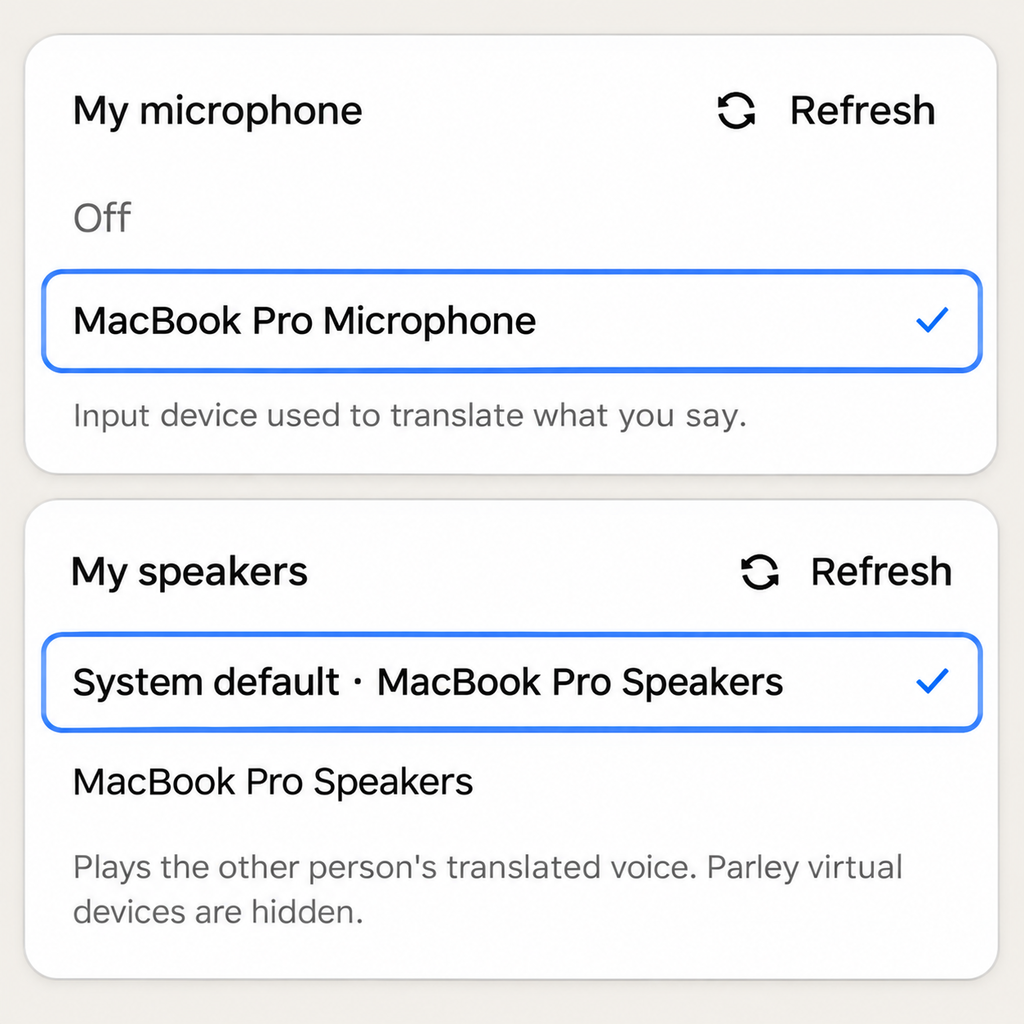
The example uses the built-in MacBook Pro devices. If you are wearing headphones, select them under My speakers. -
Check the virtual device names. Farther down the same page, find the microphone and speaker listed for your meeting app. Use Copy to keep the full names handy.
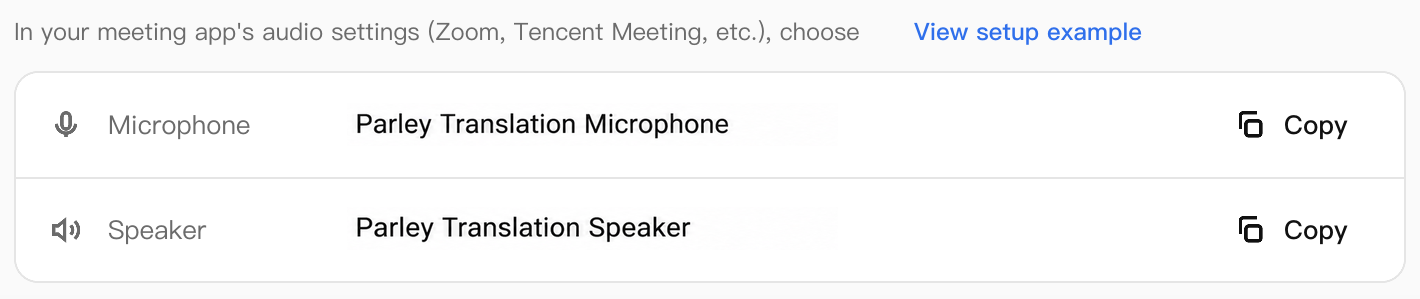
These are the two virtual devices to select in your meeting app. -
Select the devices in Zoom. Open Settings → Audio or the arrow next to the in-meeting audio button. Select Parley Translation Microphone for the microphone and Parley Translation Speaker for the speaker. If the drivers were installed in Chinese or retained their names during an upgrade, match the full names Parley shows.
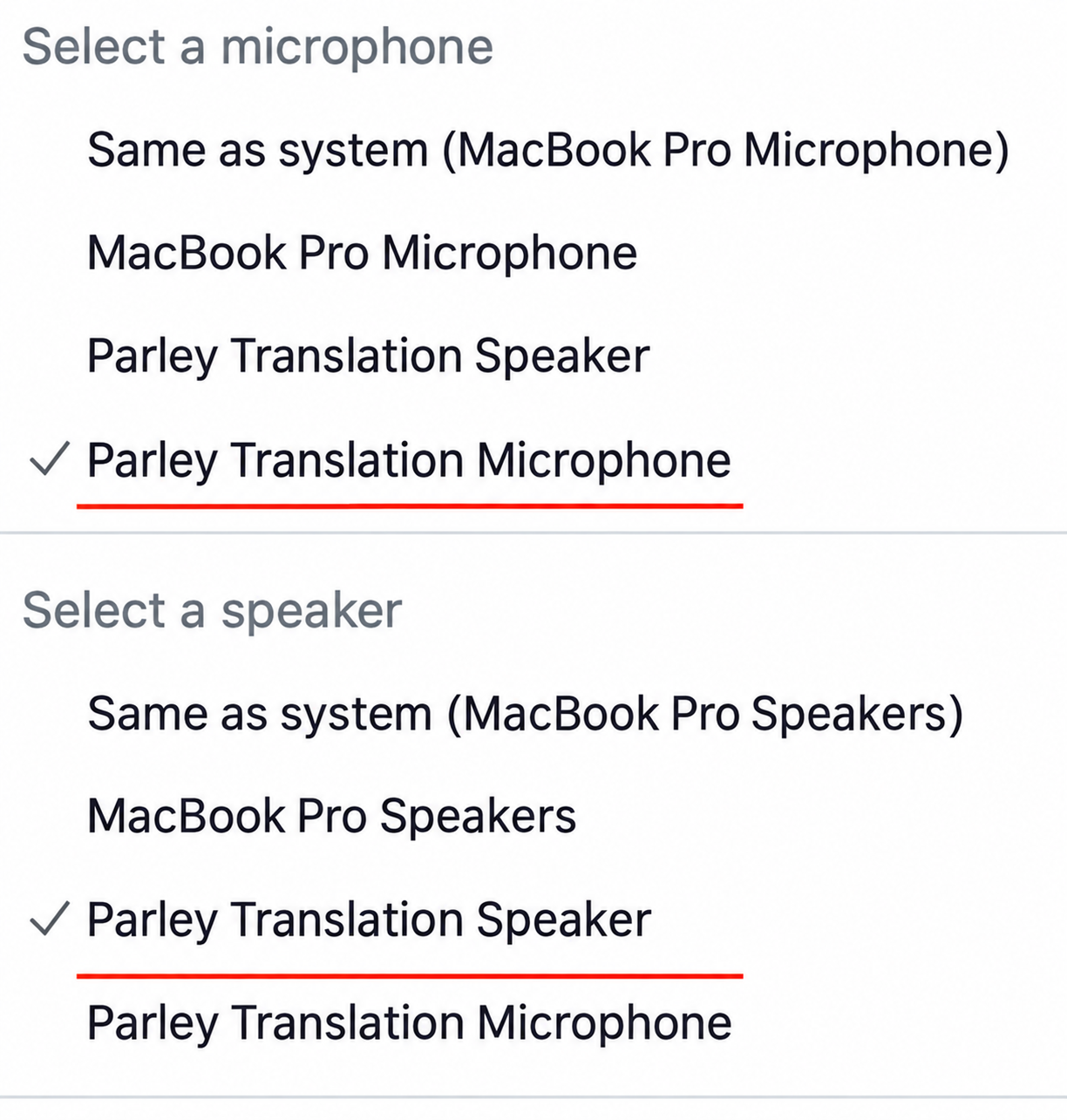
In Parley’s meeting app example, the two checkmarks show the microphone and speaker selections.
If the virtual devices are missing after an upgrade, rerun first-launch setup from Settings → General, then refresh Audio devices. In Zoom, connect to computer audio and unmute. The other participant can keep their normal audio devices. Your voice travels from your microphone through Parley and Zoom to the other participant. Their voice travels through Zoom and Parley to your headphones.
7. Sign in and choose a translation service
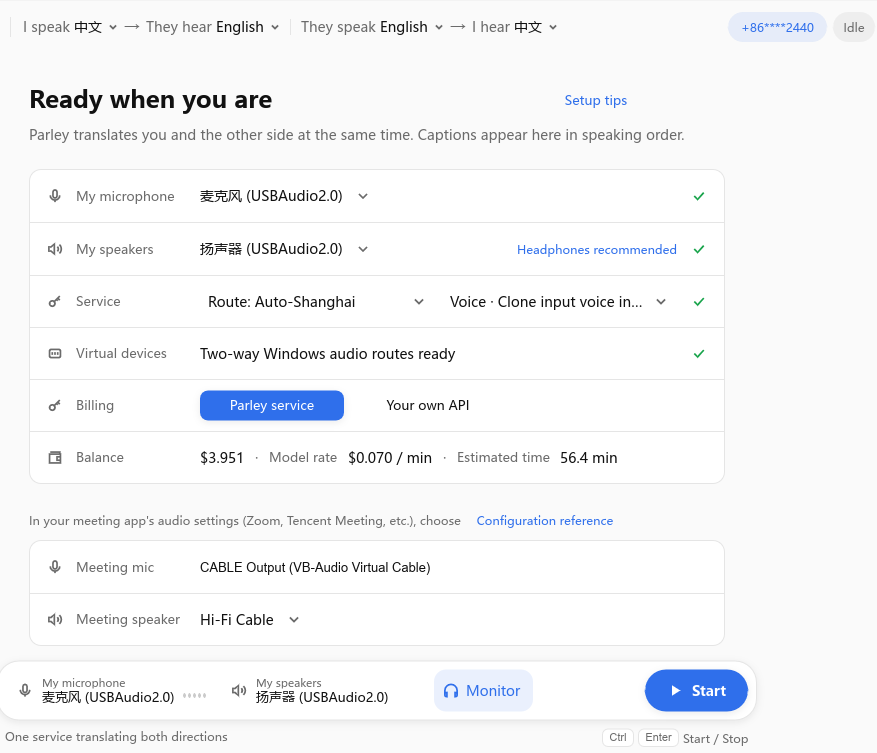
- Open Meeting translation. Under Billing method, choose Parley service; select an available Qwen or Doubao model.
- Check account credit and model availability before configuring audio. Keep the same model during the first two-way test.
- The hosted service needs no personal API key. Bringing your own provider account is a separate option, with separate configuration and provider usage charges.
8. Set languages, voice, node and monitoring
Check both language directions
Choose Meeting translation and the current model. For this example: I speak Chinese → they hear English, and they speak English → I hear Chinese. Doubao may show the two participant languages, while Qwen can show independent speaking/listening directions. Check both, then keep the model fixed for the first call.

Start with a compatible system voice
- Open the voice menu beside Translation service, or use Settings → Audio devices. Each model keeps its own voice selection.
- Choose a built-in voice compatible with the output language. First verify basic two-way audio, then compare cloning.
- When changing models or voices, stop and restart if the interface requests it, then repeat a short sentence.
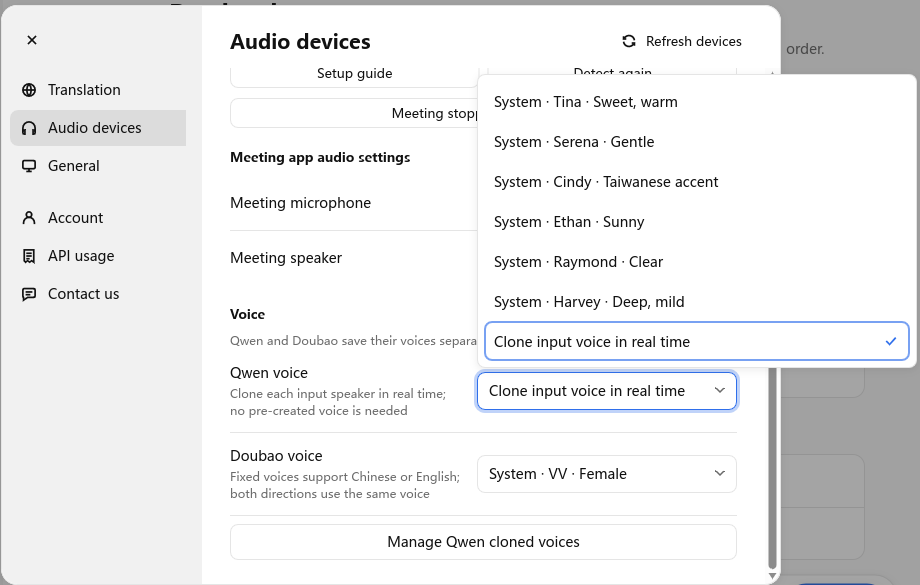
Select real-time input-voice cloning
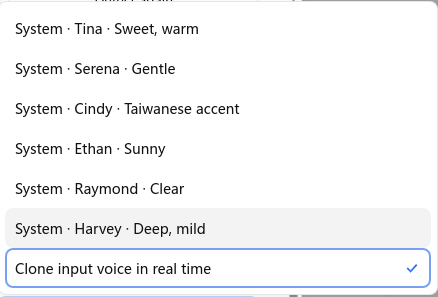
- In a supported service and mode, open the voice menu and select Real-time input voice cloning. Check the resulting selected state.
- Restart if prompted. Compare the same person, sentence and translation direction with the system voice; avoid changing model, route or volume at the same time.
- Have the receiver compare the actual translated sound. Current Qwen and Doubao live cloning requires no advance recording or saved clone; use only voices you are authorized to process.
Choose a node and retest after changing it
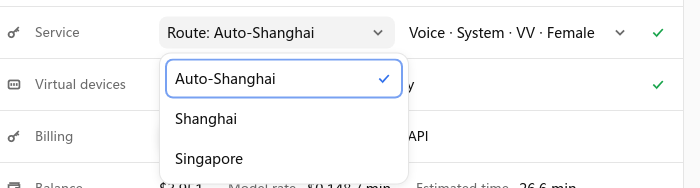
- Start with the current automatic/default route while translation is stopped. The source captures show Auto–Shanghai, Shanghai and Singapore; your current list may differ.
- If audio remains choppy, stop, choose another available route and test the same sentence. Record the final selected node.
- Compare whether complete sentences arrive. A node’s city name alone does not establish lower latency, and different screenshots may show different sessions.
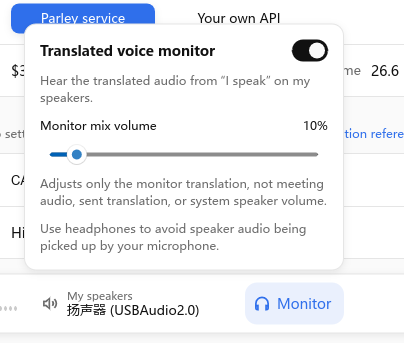
Monitor your outgoing translated speech
- Open the translated-voice monitor control and enable it. Start at a low local mix volume, then say a short sentence.
- Your playback device should play your outgoing translation, not your original microphone. The mix slider changes local monitoring, not the volume sent to B.
- Turn monitoring off and repeat. Your local copy should disappear while B still receives speech. Hearing yourself does not prove delivery to B.
9. Check a real two-way call
- Press Start in Parley after checking routing, language directions, credit and Zoom mute. First let only A speak; B repeats what they actually heard.
- B replies in English; A repeats the meaning of the Chinese playback. Leave time for translated speech, then repeat with the three prompts below.
- Confirm audio at the receiving end as well as captions. Repeat a failed round after fixing it, and run the check separately on each operating system you use.
Time
- A says in Chinese
- 请在十一月十二日北京时间下午三点前确认。
- Suggested reply from B
I will confirm before 3 p.m. Beijing time on November 12.
- Check
- Date, time zone, “before”
Numbers & negation
- A says in Chinese
- 订单编号是 PV-204,数量是五十件,不是十五件。
- Suggested reply from B
Confirmed: PV-204, fifty units, not fifteen.
- Check
- PV-204, 50, 15 and the correction
Condition
- A says in Chinese
- 收到付款之前不要发货。
- Suggested reply from B
Understood. We will not ship until payment is received.
- Check
- Do not ship before payment
These are fictional practice prompts, not quotations of the recorded output. A pass means B heard the English and A heard the Chinese, with the important facts confirmed in all three rounds. Captions, a local monitor or a device-ready badge alone are insufficient.
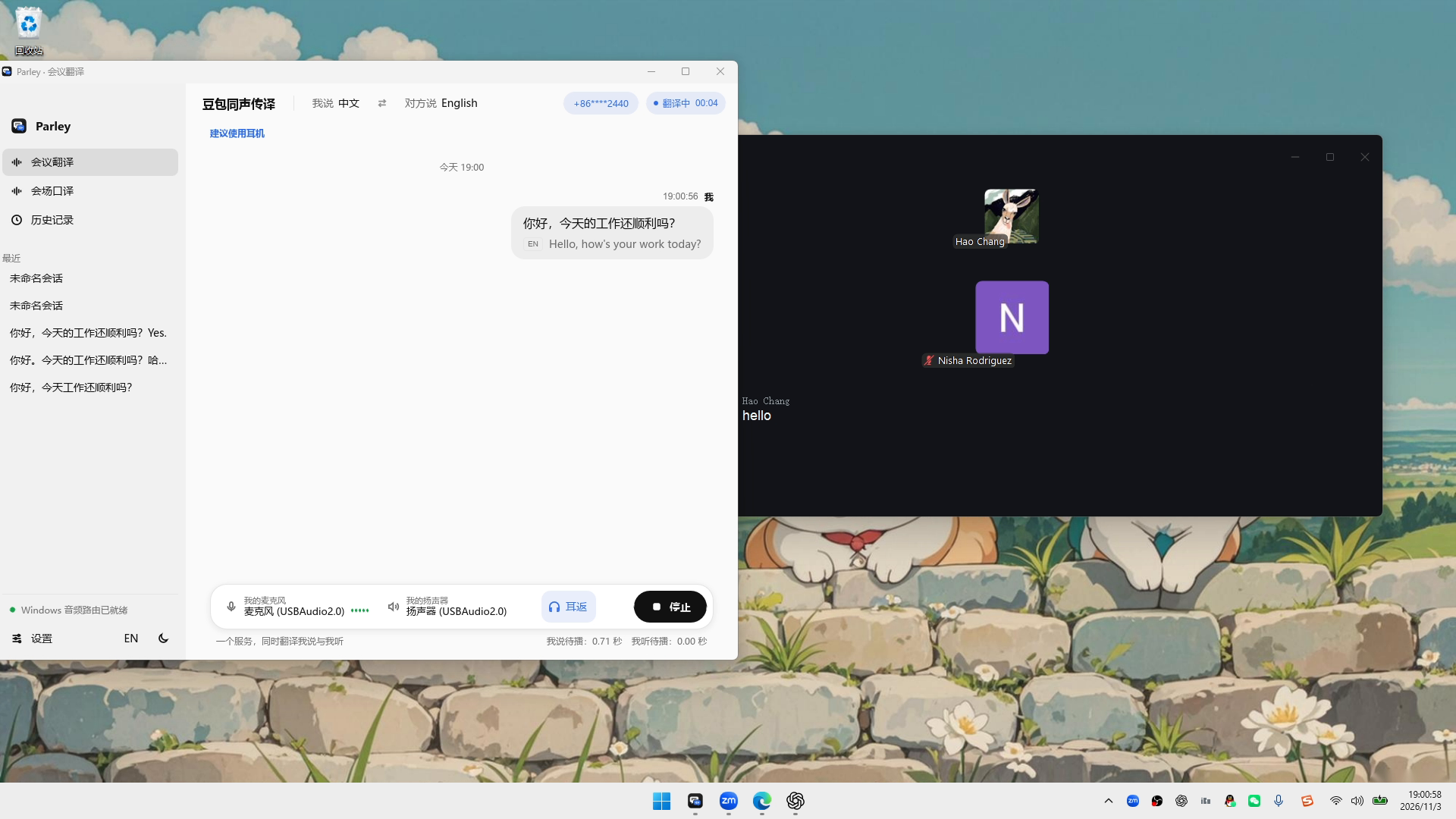
See the two endpoint examples
A runs Parley and Zoom; B is a separate phone normally joining the meeting. These are endpoint examples from the supplied materials, not synchronized proof that a particular sentence reached B.

10. Stop translation and restore ordinary Zoom audio
- Press Stop in Parley and confirm that the interface returns to a ready/not-started state.
- To keep talking without translation, switch the Zoom microphone back to your physical microphone and its speaker back to your normal playback device.
- Have both participants say a short sentence and confirm that ordinary audio is restored.
Stop the session to stop billing. Billable connected time includes silence. Changing Zoom devices, muting or leaving Zoom does not itself confirm that Parley has stopped. Meeting directions share one session charge. Venue outputs are billed separately. Current billing and prices

11. Review history and export SRT
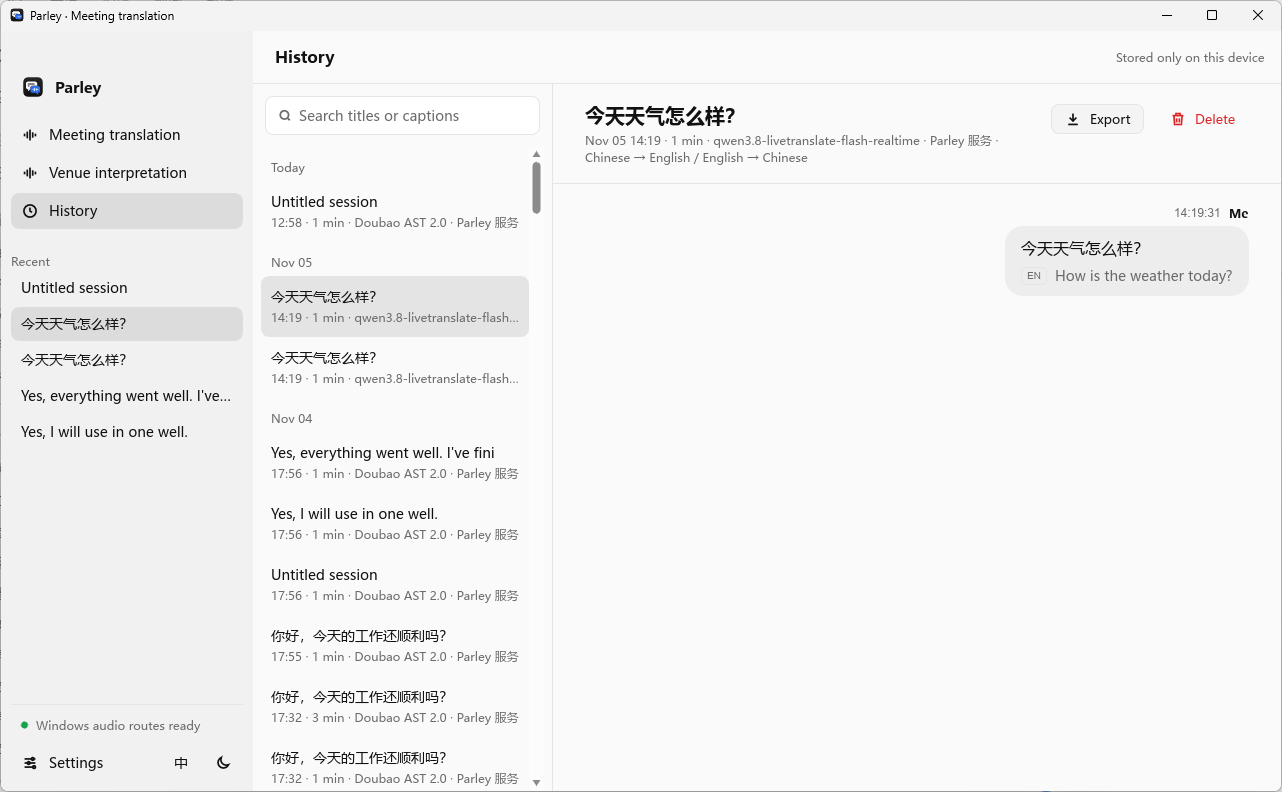
- Open History, select the conversation and check the date, model, language directions and captions.
- Choose Export, not Delete. In the checked Windows 0.1.12 build, an SRT file was written directly to Downloads and the notification showed its path.
- Open the file in a text editor and verify numbering, timestamps, original text and translation. Newer versions and Mac may use a different path or prompt; follow the actual export result.
Selected captured audio goes to the cloud translation service; caption history stays on the device. Obtain the participants’ permission before processing or recording a conversation. Data handling
The checked Windows export contained “今天天气怎么样?” and “How is the weather today?” at 00:00:05,965–00:00:10,965. It is a real export example, not a new live-translation test. Mac export controls and destinations still need to be confirmed on the actual build; do not assume Windows Downloads applies.
12. Troubleshoot one direction at a time
| Symptom | Check / fix | Confirm the fix |
|---|---|---|
| No virtual microphone | Install and refresh the driver, restart if prompted, and reopen Zoom. Look for Parley Translation Microphone in the Zoom microphone list. If an upgrade kept the old name, match the full name Parley displays. | The device is selectable and B actually hears a translated sentence. |
| B hears nothing or only original speech | Check Parley running state, physical input, output language, Zoom microphone and mute. | A speaks Chinese; B hears English and repeats the key facts. |
| A hears no translated reply | Check B’s mute, the English-to-Chinese direction and playback. On Windows, check the active Hi-Fi Cable or Zoom process capture route. On Mac, check that the Zoom speaker matches Parley Translation Speaker. | B speaks alone; A hears Chinese with the correct numbers. |
| Echo or repeated translation | Remove duplicate capture paths and prevent output returning to input. Temporarily disable monitoring; headphones can help isolate acoustic feedback. | Take turns; audio stops after speech and both directions still work. |
| Choppy audio or long waits | Check network and audio-device connections; stop, change one route and repeat the same sentence. | A complete short sentence arrives without missing key content. |
| Cloning seems unchanged | Check the selected model, the checked live-cloning option and whether a restart is required. Compare the same speaker and sentence. | The receiver compares actual system-voice and cloned outputs. |
On Windows, changing the Zoom speaker alone may not stop process capture. Set the listening source to Off or stop the session. On Mac, switching from Parley Translation Speaker to the physical speaker bypasses the virtual device; still confirm the Parley session has stopped when finished.
More first-use questions
- Does the other participant need Parley?
No. A configures Parley; B joins Zoom normally and uses their own microphone and playback device.
- Do I need my own API key?
No for the hosted service: sign in and use available credit. Personal API is a separate option and is not required for this walkthrough.
- Can I bypass only one translation direction?
Restoring the physical Zoom microphone bypasses the sending virtual cable. On Windows, changing the speaker alone may not stop process capture: use Off for the listening source or stop Parley. On Mac, switching the Zoom speaker back to the physical device bypasses the virtual device. Check the actual result separately.
- Does silence stop billing?
No. Connected ready time includes silence. Stop the Parley session explicitly; Zoom mute or a device change is not confirmation that the session ended.
- Does audio always remain on my computer?
No. Audio from the selected capture source is sent to the cloud translation service. Caption history remains local. Choose only the meeting source you need and obtain permission to process the conversation.
Ready for your next call
Use the same device, meeting app and language pair you will use in the real call. Confirm both received voices, important numbers and negations, then confirm you can stop and restore ordinary audio.